Guide
AI product photos for Shopify: how to get studio and on-model photos from one product photo
What AI product photos are, which shots you can make, what a good source photo looks like, and how to put the results straight onto your Shopify products.
Updated · 4 min read · By the Brand Studio team
What are AI product photos?
AI product photos are new photos of your real product, made by an AI image model from a photo you already have. Instead of booking a studio, a photographer and a model, you start from one clear photo of the product and choose the shots you want: a clean packshot, the product on a model, a styled flat lay or a location scene.
The hard part is not making a nice image. It is keeping the product exactly the same: the same color, print, buttons and details. A photo that shows a slightly different product leads to unhappy customers and returns, so that is what to judge any tool on.
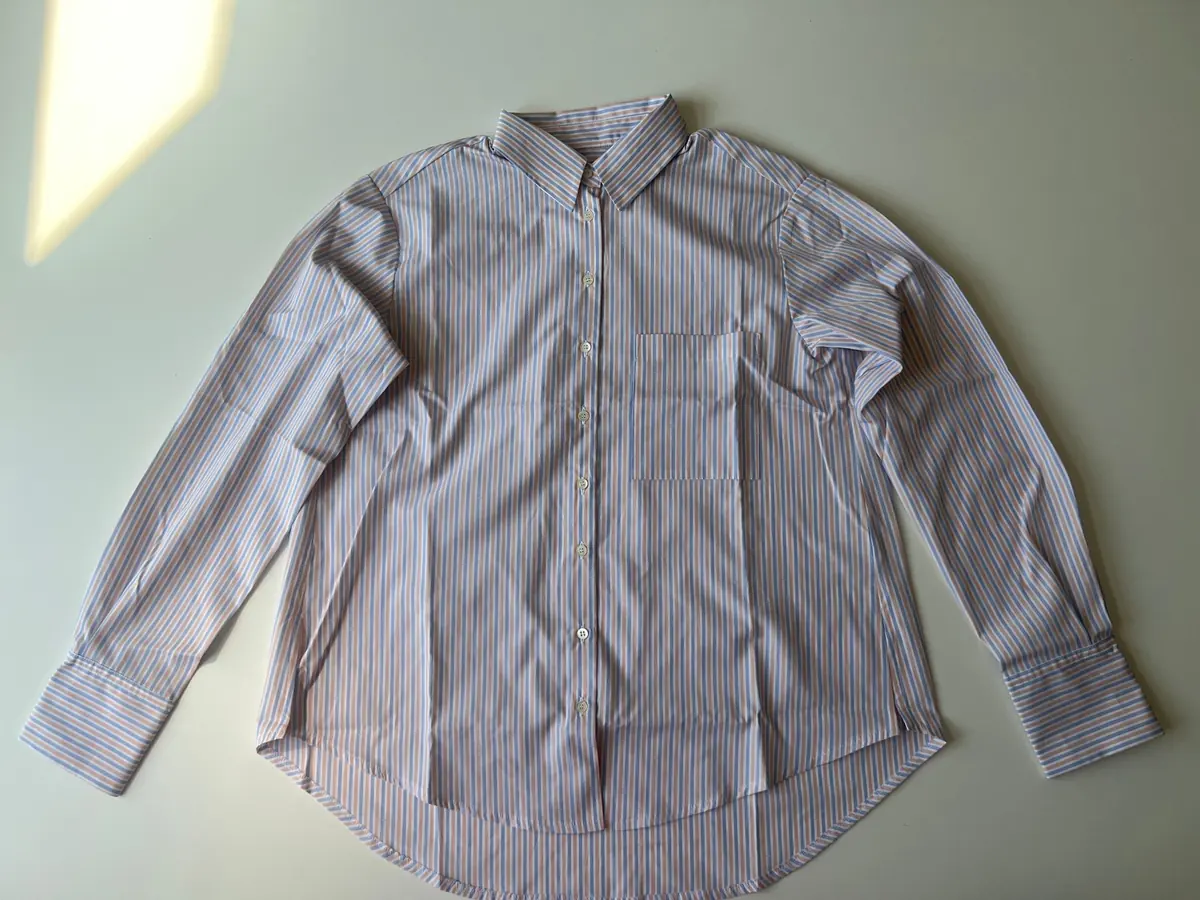
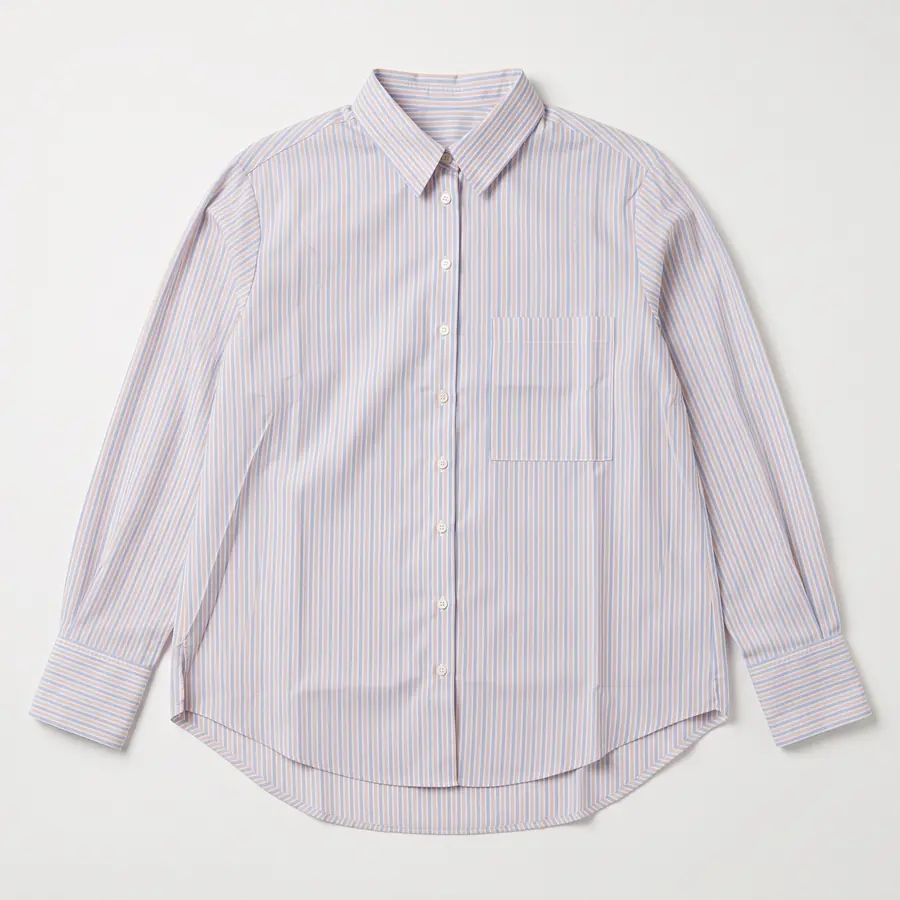
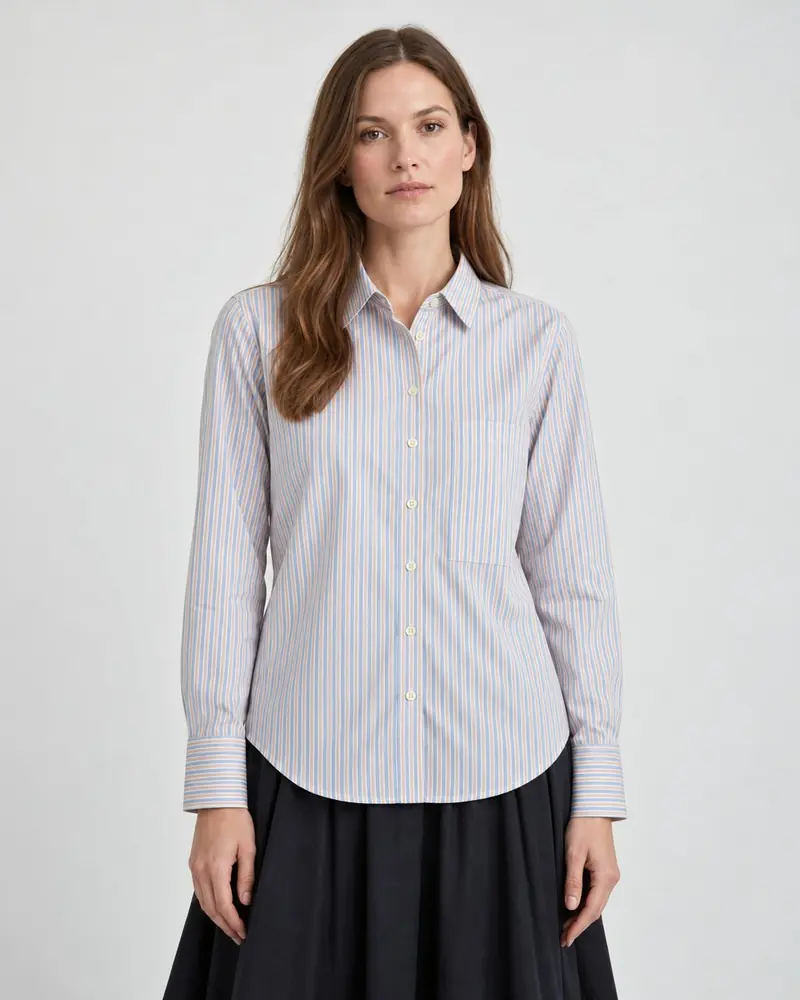
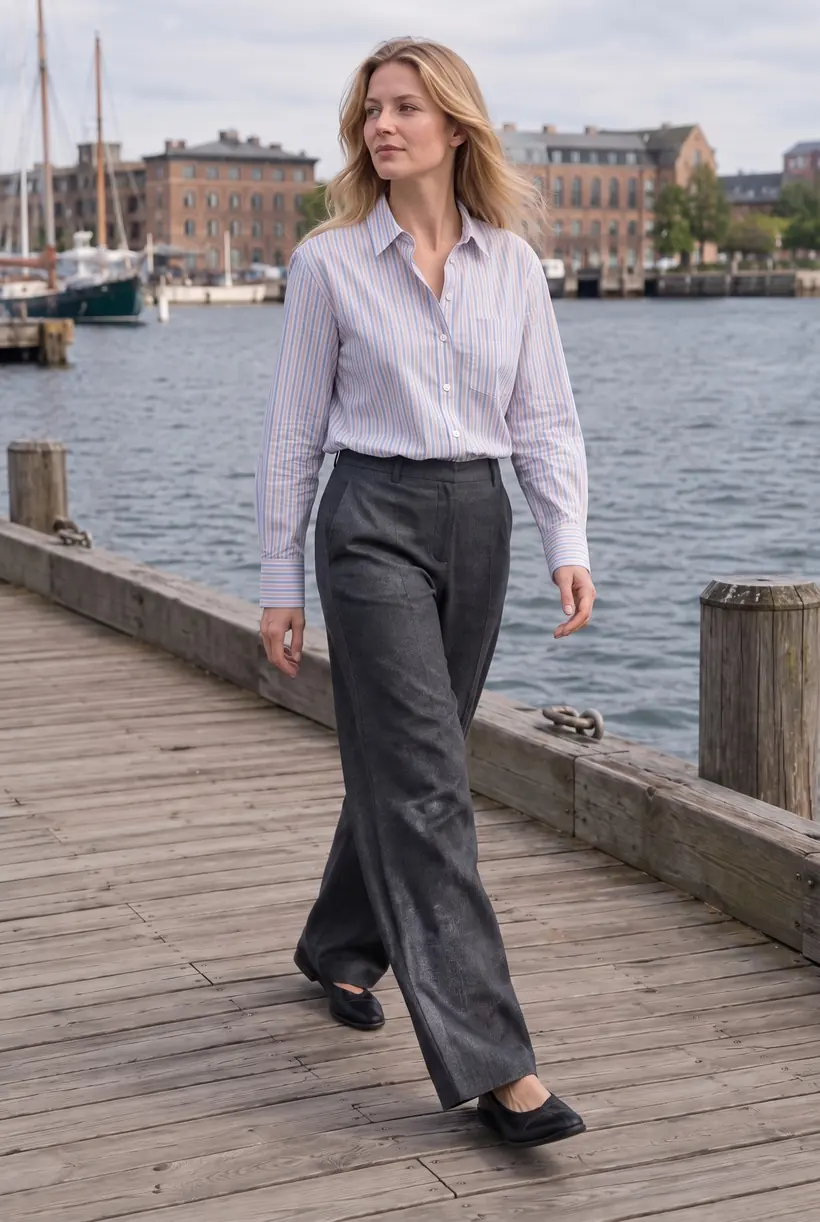
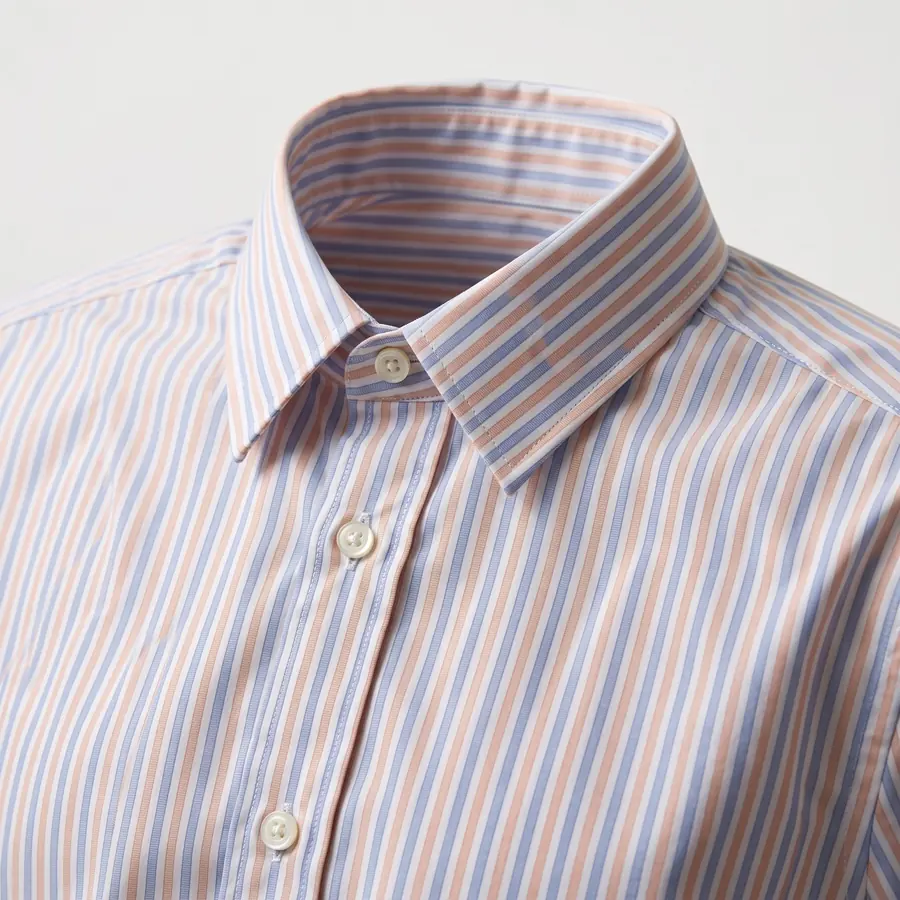
Every shirt photo on this page was made with Brand Studio from the phone photo of the striped shirt at the top. The shirt in the harbor shot, the studio shot and the close-up is the same shirt, with the same stripes and the same buttons.
Shots you can make from one photo
A product page usually needs a few different kinds of photo. Each one does a different job, so it helps to plan them as a set instead of one at a time.
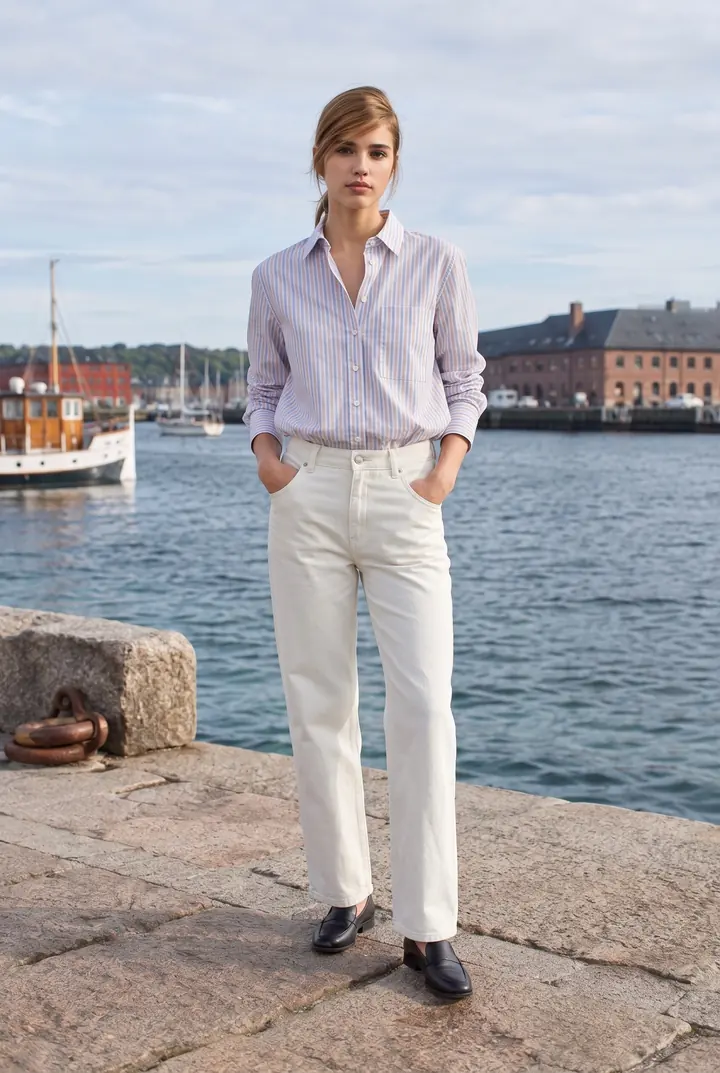
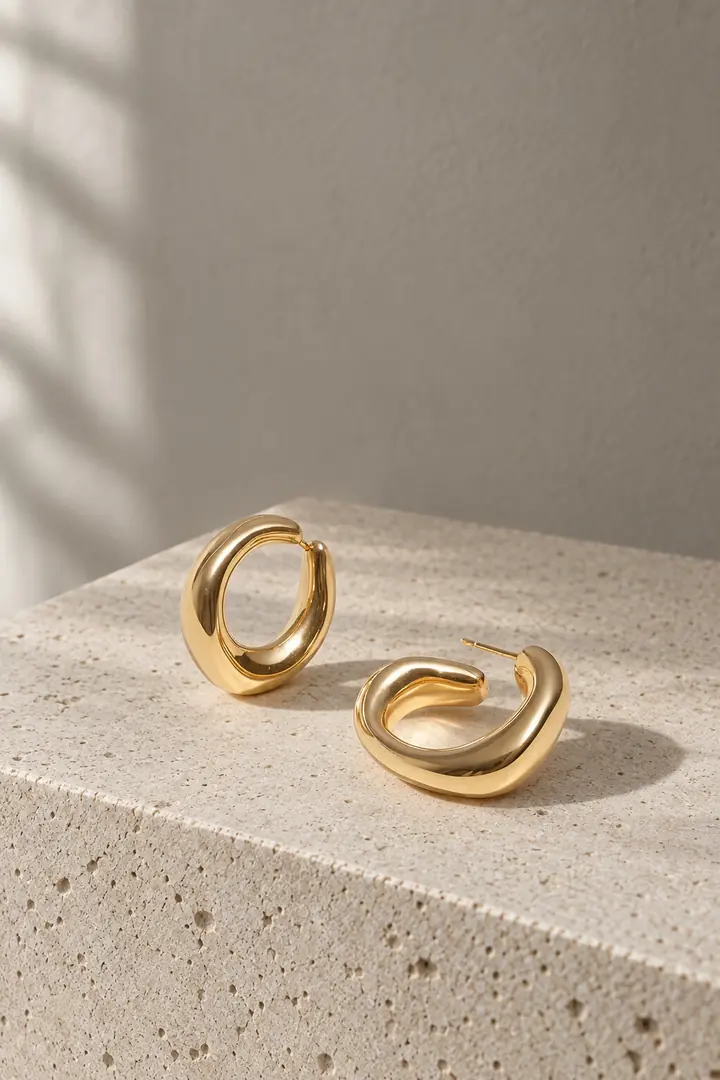
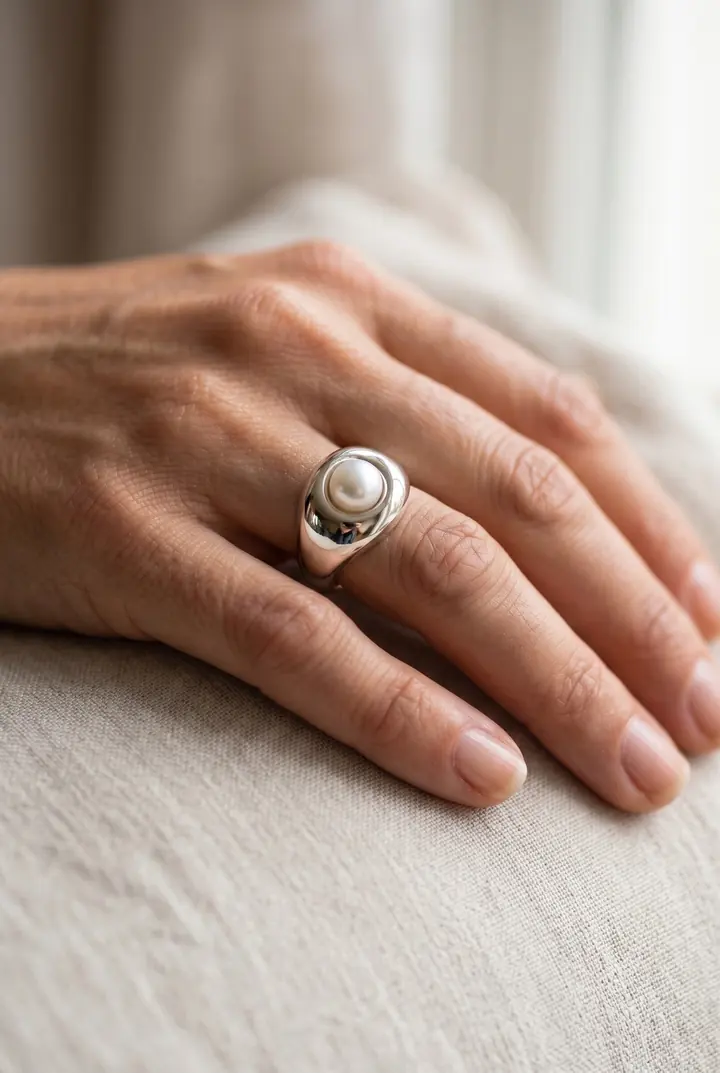
For clothing, a good starting set is one packshot, two on-model shots and one close-up. For jewelry, start with a still life, a worn shot and a close-up. Our guides to on-model photos, packshots and flat lays and jewelry photos go deeper on each.
How to do it in Shopify
- Install an AI photo app from the Shopify App Store. Brand Studio runs inside your Shopify admin, so it can read your product photos and save results back to the product.
- Open a product and pick a photo set. A photo set is a group of shots that belong together, for example a packshot, two on-model shots and a close-up. Use a ready-made photo set or make your own by describing each shot in your own words.
- Check the cost and start. You see how many credits the run uses before you start. If a photo fails, its credits go back automatically.
- Review and add to store. Keep the shots you like. Add to store puts them on the product. Nothing changes on your store until you choose.
If a detail matters, say so. Each photo has room for instructions in plain words, like “show the label” or “a softer shadow”. You do not need to learn any special prompt wording.
What a good source photo looks like
- Show the whole product, front facing the camera.
- Use soft, even daylight. Avoid hard shadows and flash.
- A plain table or wall is enough. The background gets replaced.
- Add a back photo if the back matters, and a close-up for small details like a logo or clasp.
- A recent phone camera is fine. Sharp beats fancy.
Brand Studio has room for up to four source photos per product: front, back, close-up and one that shows scale. The front photo does most of the work. The others help the AI get the back, the small details and the size right. Our phone photo guide walks through it step by step.
What it costs
A traditional shoot means paying for a photographer, a studio and often a model, and waiting days for edits. With Brand Studio you pay per photo in credits. A Quality 1K photo uses 2 credits and a sharper Quality 2K photo uses 3. Photos with one of your models or a ready-made model use twice as many.
| Plan | Price | Credits |
|---|---|---|
| Free | $0 | 15 credits total |
| Basic | $19 a month | 50 credits a month |
| Pro | $39 a month | 100 credits a month |
| Business | $99 a month | 250 credits a month |
Every plan has every feature. On Shopify you pay through your Shopify bill. The Free plan gives you 15 credits to try it on a few products, with no credit card. Paid plans can buy extra credits when a month runs short.
Mistakes to avoid
- Accepting a changed product. Zoom in on buttons, prints and logos before you add a photo to your store.
- Mixing styles across a collection. Use one photo set per collection so the catalog looks consistent.
- Only on-model shots. Shoppers still want a clean packshot and a close-up of the details.
- Starting from a blurry photo. The AI can only keep details it can see. Retake the source photo before you spend credits.
- Hiding that photos are AI made, where rules require it. Check the rules for your market and your ad platforms. Brand Studio can add a visible AI label to photos when you save them.
FAQ
Can I use AI product photos on my Shopify store?
You upload product photos to Shopify the same way, however they were made. What matters is that the photos show the real product accurately, and that you follow the disclosure rules in your market and on your ad platforms.
Will the AI change my product?
It can, with tools that are not built for products. Brand Studio is built to keep color, print and details true to your photo, and you review every photo before it goes on your store.
Do I need a model or a studio?
No. Choose a ready-made model, or create your own brand model and reuse the same face across your catalog.
Can I try it before I pay?
Yes. The Free plan includes 15 credits with no credit card.
Related guides
On-model photos without a photoshoot
Show clothing on a person without booking a model, a studio or a photographer.Packshots and flat lays with AI
Clean packshots and styled flat lays from a quick phone photo, and when to use each.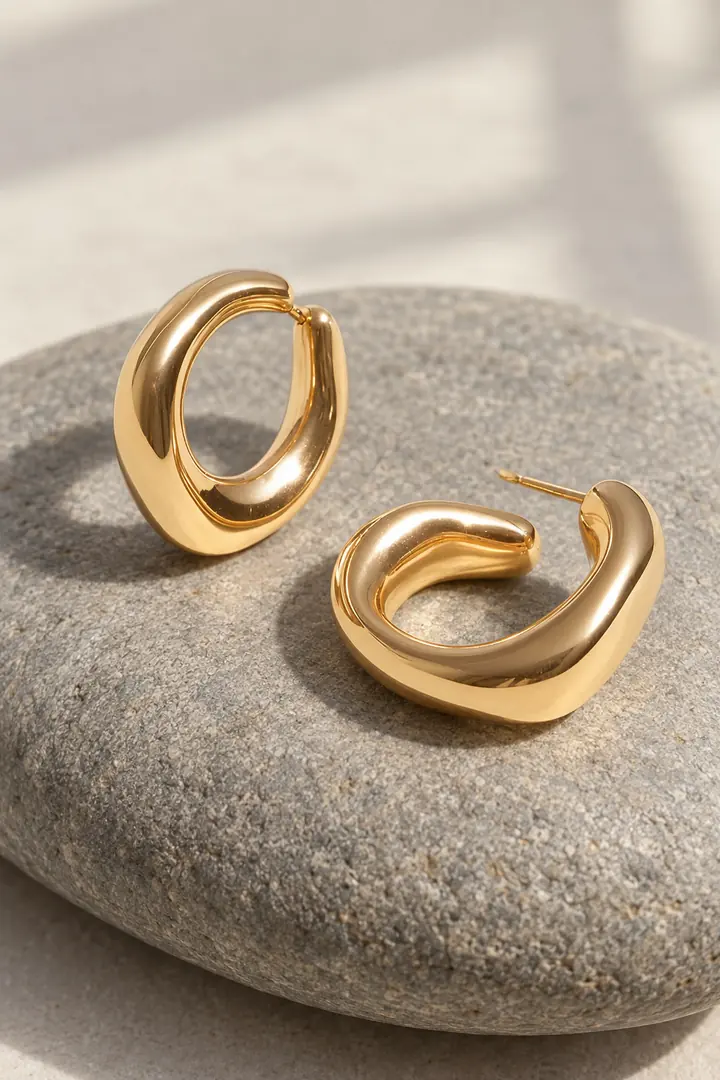
Jewelry photos that sell
Still life, close-up and worn shots for rings, earrings and necklaces.Make your first AI product photos today.
Free plan with 15 credits. No credit card.
Install on Shopify