Guide
Packshots and flat lays with AI: clean catalog photos from a phone photo
Packshots and flat lays are the workhorses of a product catalog. Here is when to use each, how to make them from a quick phone photo, and how to keep a whole catalog looking like it belongs together.
Updated · 4 min read · By the Brand Studio team
Packshot or flat lay: what is the difference?
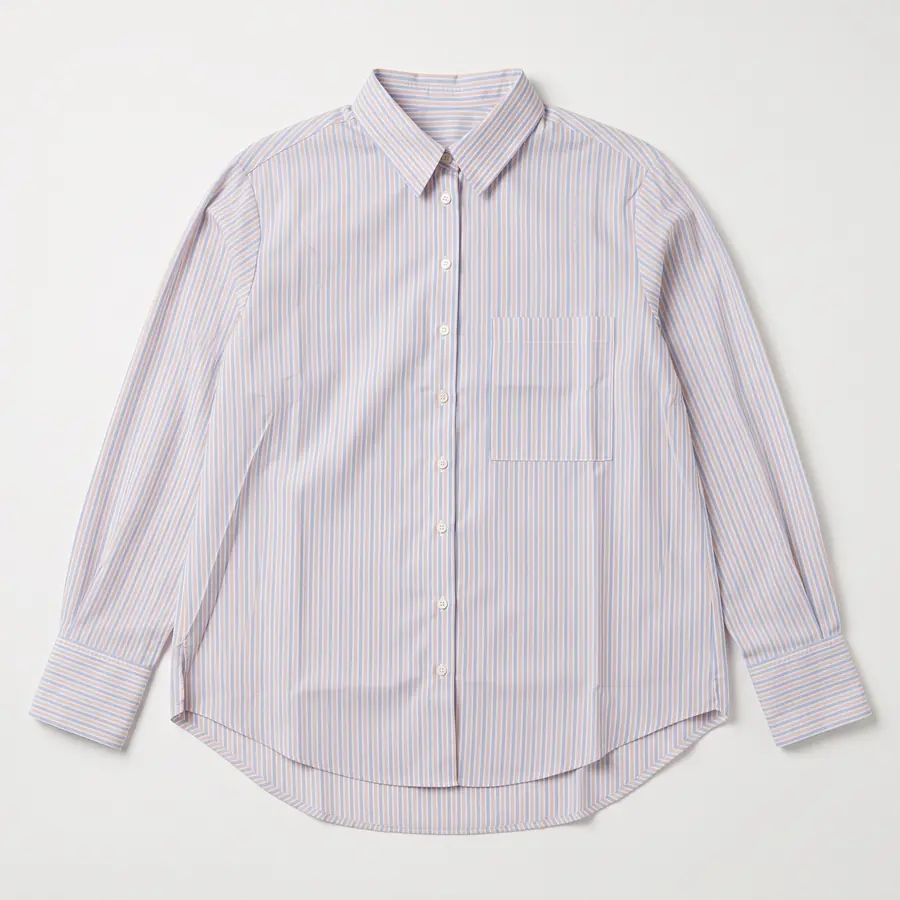
A packshot shows the product on its own, on a plain background, with nothing else in the frame. It is usually the first photo on a product page and the one that shows up in collection grids, search results and shopping ads.
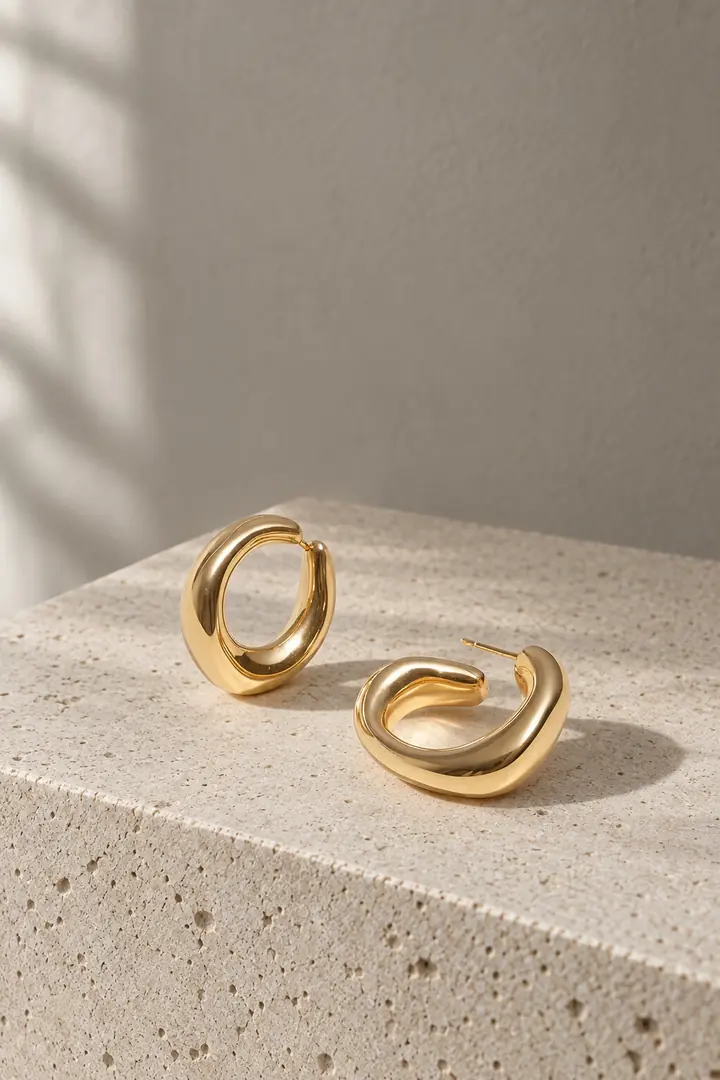
A flat lay shows the product lying on a surface, photographed from above. It can be plain, or styled with a few props that suggest how the product is used: a belt and shoes next to a shirt, a linen cloth under a necklace.
For clothing there is a third common catalog shot, the ghost mannequin: the garment shaped as if worn, with no person or mannequin visible. Brand Studio's ready-made photo sets include flat lay and ghost mannequin shots as well as studio packshots.
When to use each
| Where the photo goes | Packshot | Flat lay |
|---|---|---|
| First photo on the product page | Best choice | Works for accessories and folded goods |
| Collection and search grids | Best choice, the grid looks even | Can look busy next to other products |
| Shopping ads | Usually the safest choice | Check the ad platform's image rules first |
| Social posts and email | Fine | Often better, it tells a small story |
| Showing a set or an outfit | One product per photo | Good for showing pieces together |
A simple rule: packshots sell the product, flat lays sell the idea. Most stores need a packshot for every product and a flat lay for some.
From phone photo to packshot
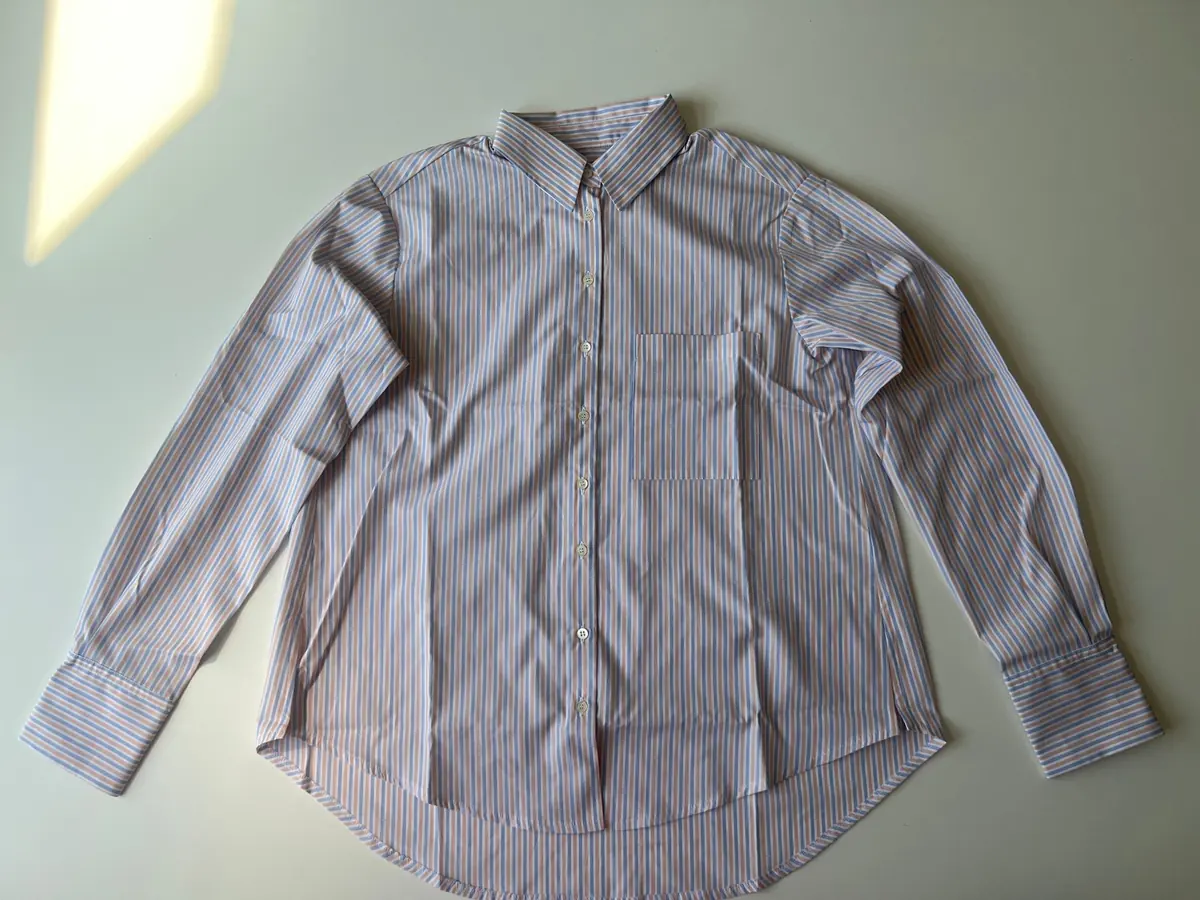
- Take a clear source photo. Whole product in frame, even daylight, no flash. A plain table or wall is fine. Our phone photo guide has the details.
- Choose a photo set with the shots you need. A packshot, a flat lay and a close-up is a good catalog set for most products.
- Add instructions only where they matter. For example “show the label” or “buttons done up”.
- Compare each photo with the real product and add the ones you keep to your store.
Keeping a catalog consistent
Shoppers notice when one product sits on bright white, the next on warm grey and the third in harsh light. It makes a store look unplanned. AI photos make consistency easier, because the same photo set gives every product the same background, light and framing.
- Pick one background per collection and stick with it. White is the safe default. A soft color can work well if you use it everywhere.
- Keep framing the same. Products should fill a similar share of the photo, so the grid looks even.
- Use one photo set per collection and reuse it for every new product. In Brand Studio you can save your own photo sets for exactly this.
- Check the photo shape your theme uses for product grids, and keep all first photos in that shape.
Styling a flat lay
A good flat lay has one clear hero and a few quiet supporting pieces. Props should hint at use without stealing attention.
- Use two or three props at most, in colors that sit back from the product.
- Never let a prop cover part of the product. Shoppers need to see all of it.
- Match the surface to the brand: linen and wood feel warm, stone feels calm, paper feels clean.
- Leave some empty space around the product so it can breathe and crop well on mobile.
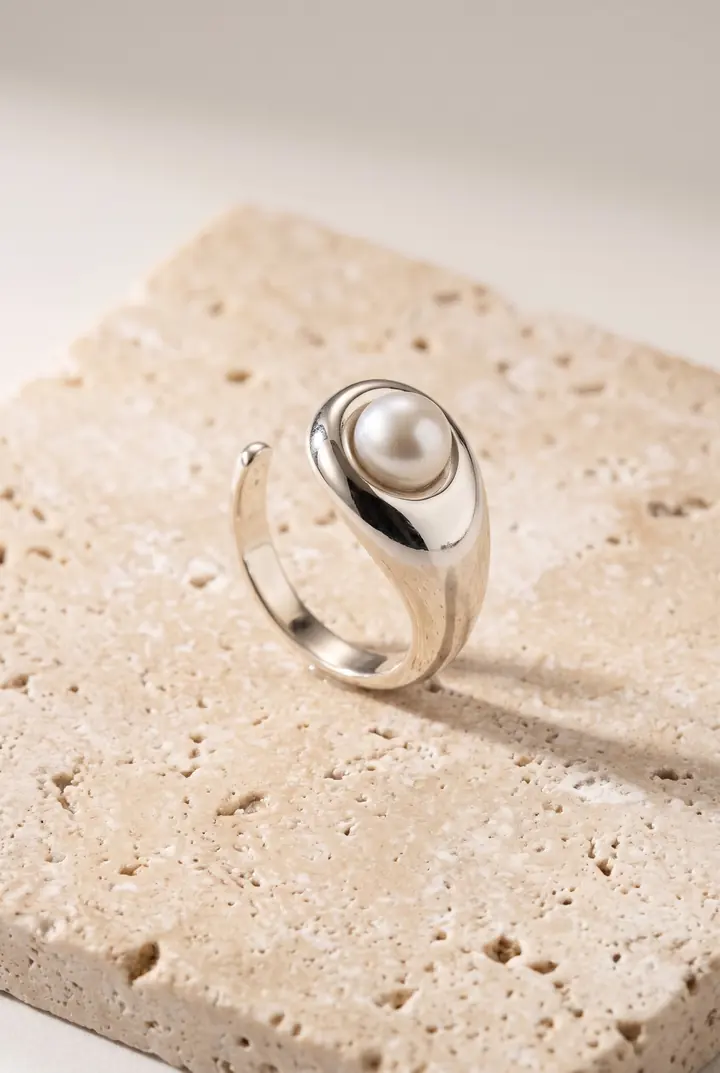
Pair every packshot with a close-up
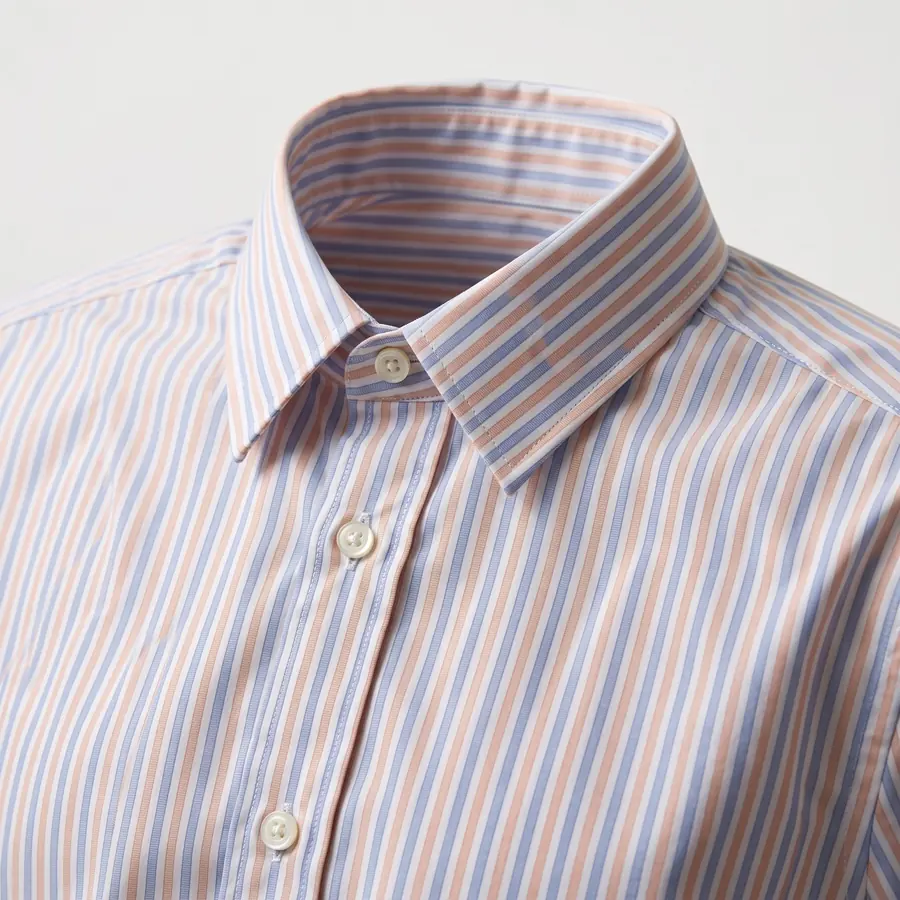
A packshot shows the whole product, but shoppers also want to see quality up close: the weave of the fabric, the stitching, the clasp, the finish. A close-up next to the packshot answers that question before it becomes a return.
Close-ups are also where AI photos are most likely to drift, because small details are hard. Add a close-up source photo of the detail that matters, and check the result closely.
What to check before you publish
- Color. Compare the photo with the real product in daylight. Whites and pastels shift most easily.
- Logos and text. Labels, prints and lettering must read exactly as on the product.
- Shape. Collars, straps and hems should match. A packshot that makes a garment look a different cut sets the wrong expectation.
- Creases. A packshot can look neater than the real product. That is normal, but it should not hide a feature like a pleat or a gathered seam.
FAQ
Should my first product photo be a packshot?
For most stores, yes. A clean packshot makes collection grids and search results look even, and it shows the whole product at a glance.
Do I need a white background?
Not always. White is the safe default, and some ad platforms and marketplaces have their own image rules, so check those. A soft color can work well on your own store if every product uses it.
Can I make a flat lay from a photo of the product on a hanger?
Often, yes, as long as the whole product is visible and sharp. A photo of the product laid flat on a table usually gives the most reliable result.
What is a ghost mannequin photo?
A photo of a garment shaped as if worn, with no person or mannequin visible. It shows the shape of clothing without a model, and it is one of the shot types in Brand Studio's ready-made photo sets.
Related guides
Take a source photo with your phone
Light, angle and background tips that give the best AI results.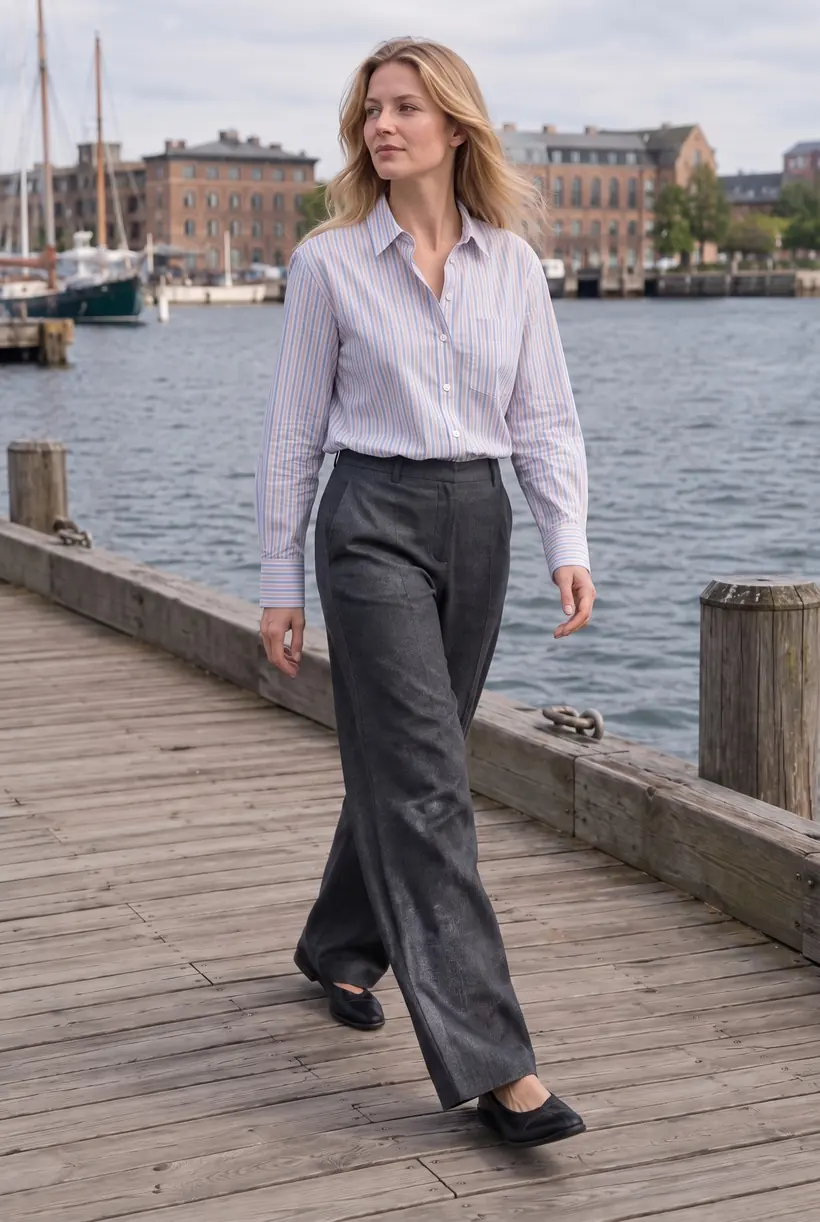
AI product photos for Shopify
What AI product photos are, what they cost, and how to get them onto your products.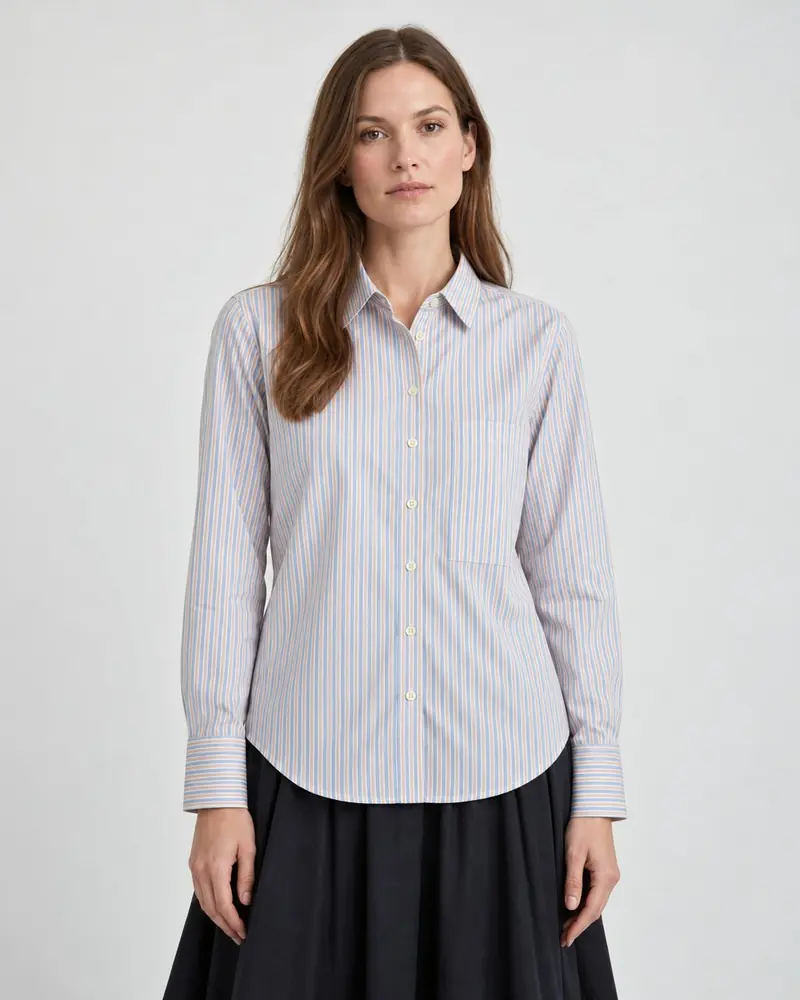
On-model photos without a photoshoot
Show clothing on a person without booking a model, a studio or a photographer.Make your first AI product photos today.
Free plan with 15 credits. No credit card.
Install on Shopify