Guide
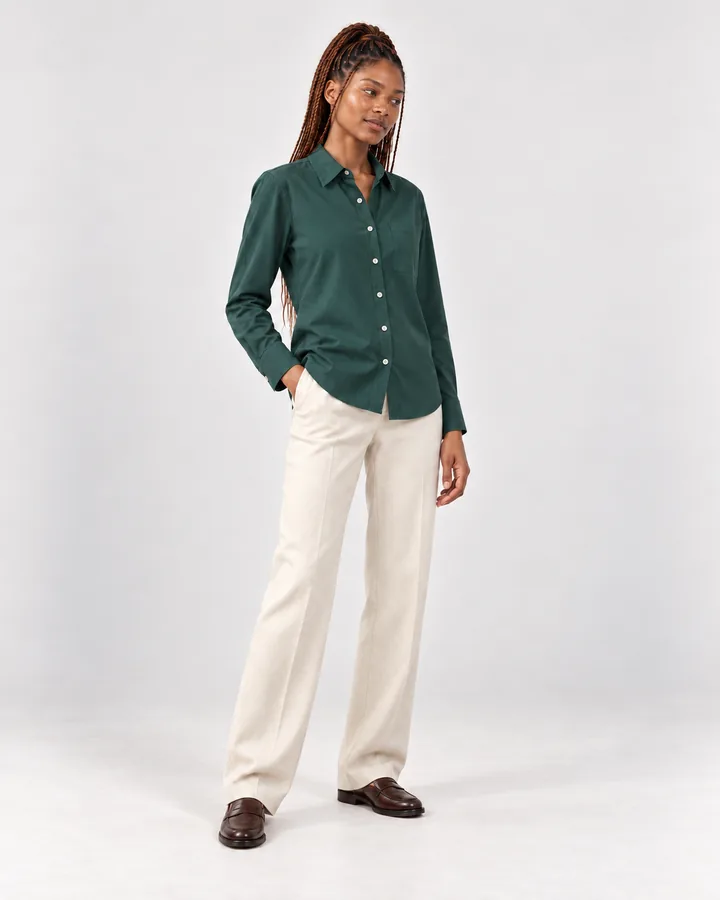
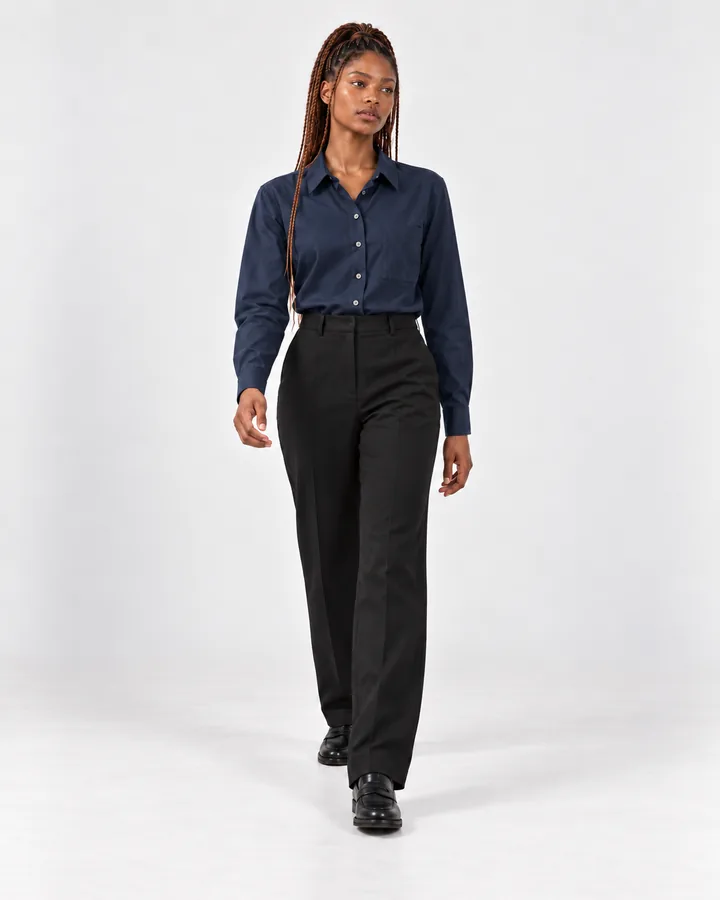
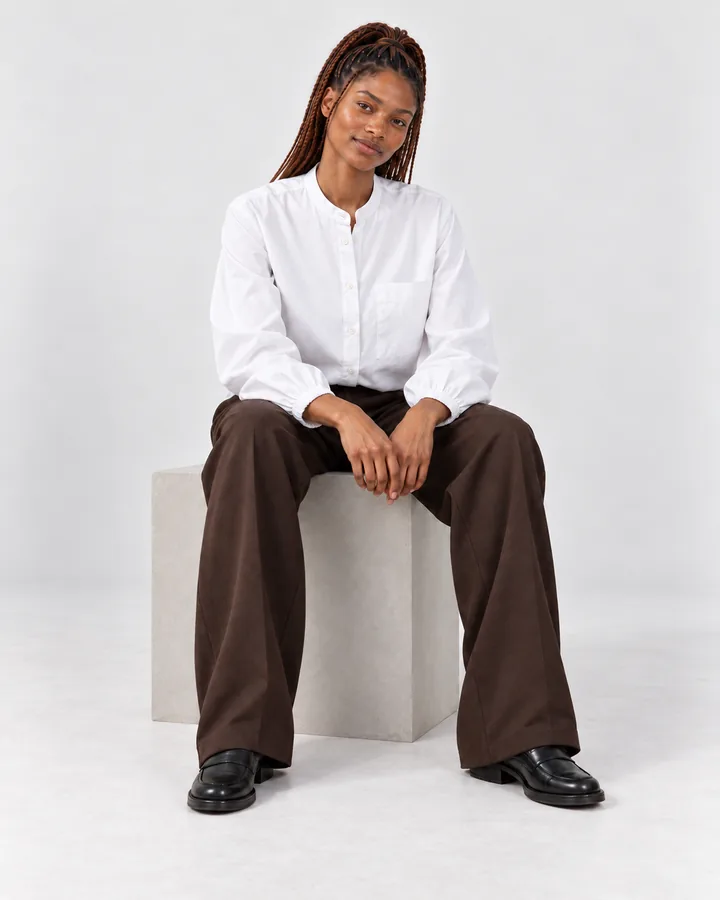
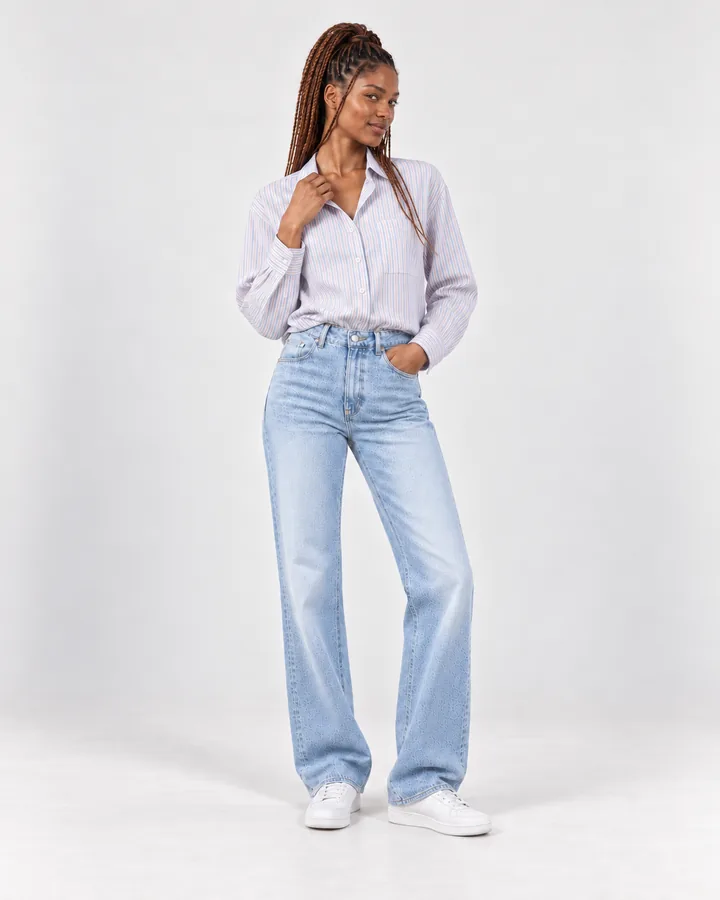
On-model photos without a photoshoot: show clothing on a person, no studio needed
Shoppers want to see clothes on a body before they buy. Here is how to get on-model photos from the product photos you already have, and how to keep them honest.
Updated · 4 min read · By the Brand Studio team
Why on-model photos matter
A shirt on a hanger tells a shopper the color. A shirt on a person tells them how it hangs, how long it is, where the shoulders sit and what to wear it with. That is the information people miss most when they buy clothes online, and it is the reason most fashion stores show at least one photo of each piece being worn.
The problem is cost and time. A model shoot needs a model, a photographer, a location or studio, styling and editing. For a small store with new products every month, that adds up fast, and products often go live with a single flat photo instead.
Your options, side by side
There are four common ways to show clothing. None is right for every store, and many stores mix them.
| Option | What you need | Good for | Watch out for |
|---|---|---|---|
| Model photoshoot | Model, photographer, studio or location, editing | Hero campaigns, brand storytelling | Cost and lead time for every new product |
| Ghost mannequin | Mannequin, lighting, editing to remove the mannequin | Clean catalog photos that show shape | No sense of fit on a real body |
| Flat lay | A clean surface and good light | Fast, consistent catalog photos | Hard to judge length and fit |
| AI on-model photos | Clear source photos of the product | On-model photos for every product, in one consistent look | You must check that the product stays exactly the same |
If you go the AI route, you can still make the other kinds of photo from the same source photos. Our packshot and flat lay guide covers the catalog side.
How AI on-model photos work
- Add your source photos. A front photo of the product is the minimum. A back photo and a close-up of details like the collar or a logo help a lot.
- Pick a model. Use a ready-made model, or one of your own brand models.
- Pick a photo set. For example a light studio set for the product page and a location set for ads and social posts.
- Review every photo. Compare it with your product. Keep the ones that are right, and add them to your store.
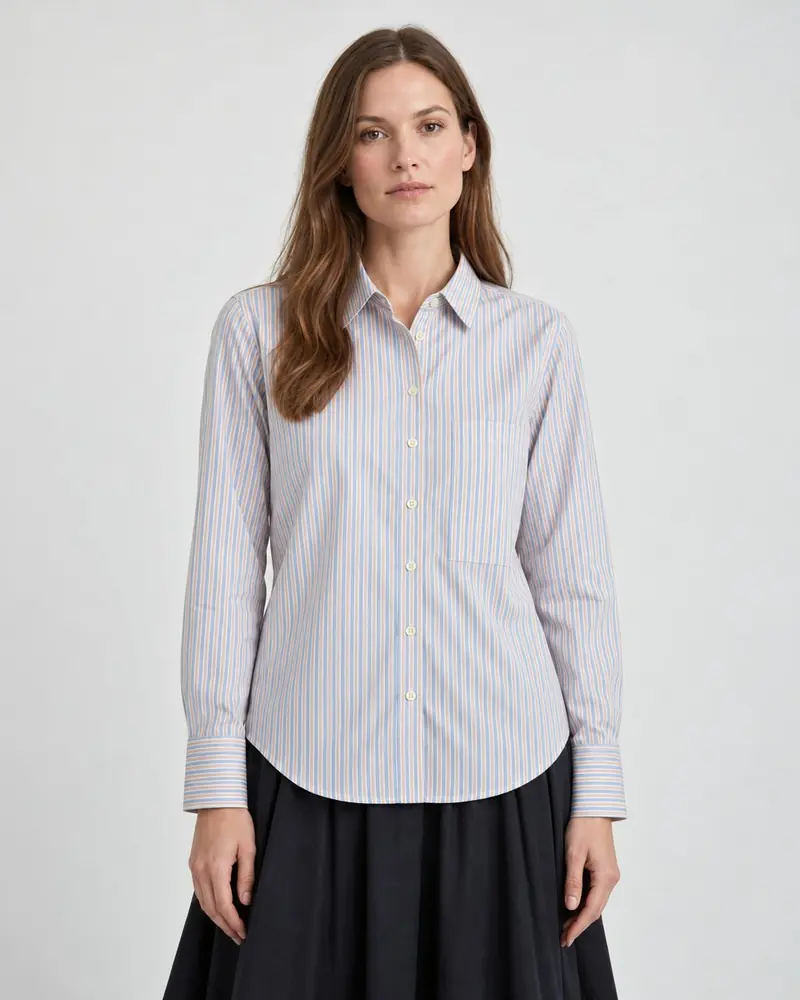
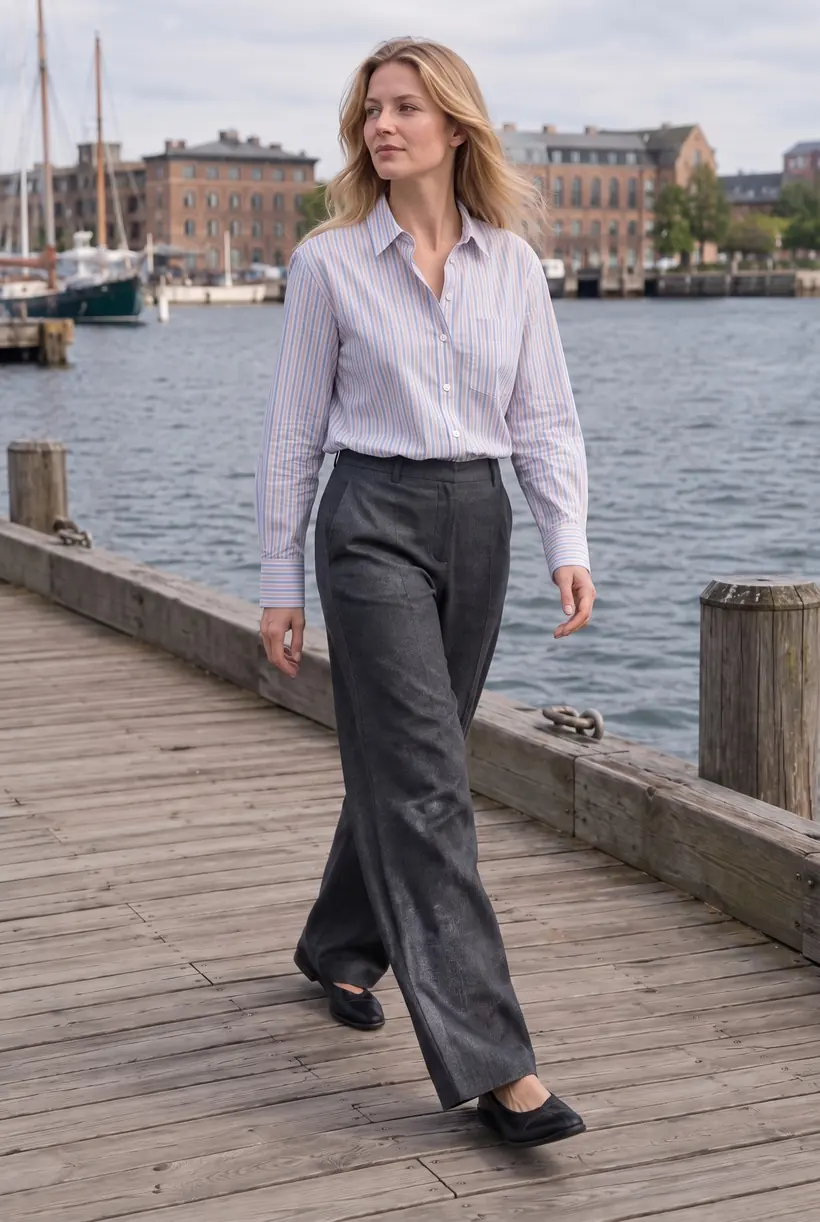
On-model photos with one of your models or a ready-made model use twice the credits of a product-only photo: 4 credits at Quality 1K and 6 at Quality 2K. You see the cost before you start, and failed photos are refunded automatically.
Choosing a model for your brand
The single biggest thing that makes a store look like a brand is consistency. When the same person wears every piece in a collection, shoppers compare products instead of faces, and the store feels planned rather than pieced together from different sources.
Ready-made models
Brand Studio has a library of ready-made models with different looks, ages and body types. Pick one or two that fit your customers and use them across your catalog.
Your own brand model
You can also create your own brand model, or import a person you already shoot with. Only import someone who has agreed to it, ideally in writing, and keep a note of what they agreed to. The same goes for any face you did not create yourself.
Getting fit and details right
An AI model cannot know exactly how your garment fits a real body in every size. It works from what it can see in your source photos. A few habits make the results more reliable:
- Photograph the whole garment. Cut-off hems and sleeves leave the AI guessing about length.
- Add a back photo when the back has a print, a yoke, pleats or a different cut.
- Add a close-up of anything small that must be right: buttons, labels, embroidery, a zip pull.
- Use instructions for styling choices, in plain words: “tucked into the trousers”, “sleeves rolled to the elbow”, “show the side slit”.
- Keep size information in your product description. A photo shows one look. Measurements and a size guide answer the fit question for every shopper.
A checklist before you add a photo to your store
- Is the color the same as the real product, in daylight?
- Are the print, stripes or pattern the same size and direction?
- Are the buttons, pockets, seams and labels where they really are?
- Is the length right? Compare the hem with your source photo.
- Would a customer who receives this product recognize it from the photo?
If any answer is no, skip that photo or run it again with an instruction about what to fix. In Brand Studio nothing reaches your store until you choose Add to store.
FAQ
Can I use the same model on every product?
Yes. That is the point of a brand model: pick one ready-made model or create your own, and use it across your whole catalog for a consistent look.
Can I use a photo of a real person as a model?
Only with their permission. Import people who have agreed to it, such as a model you already work with, and keep a record of what they agreed to.
Do on-model photos cost more?
Photos with one of your models or a ready-made model use twice as many credits as product-only photos. The app shows the cost before you start.
Do I need to say the photos are AI made?
Rules differ by market and by ad platform, so check the ones that apply to you. Brand Studio can add a visible AI label to photos when you save them.
Related guides
AI product photos for Shopify
What AI product photos are, what they cost, and how to get them onto your products.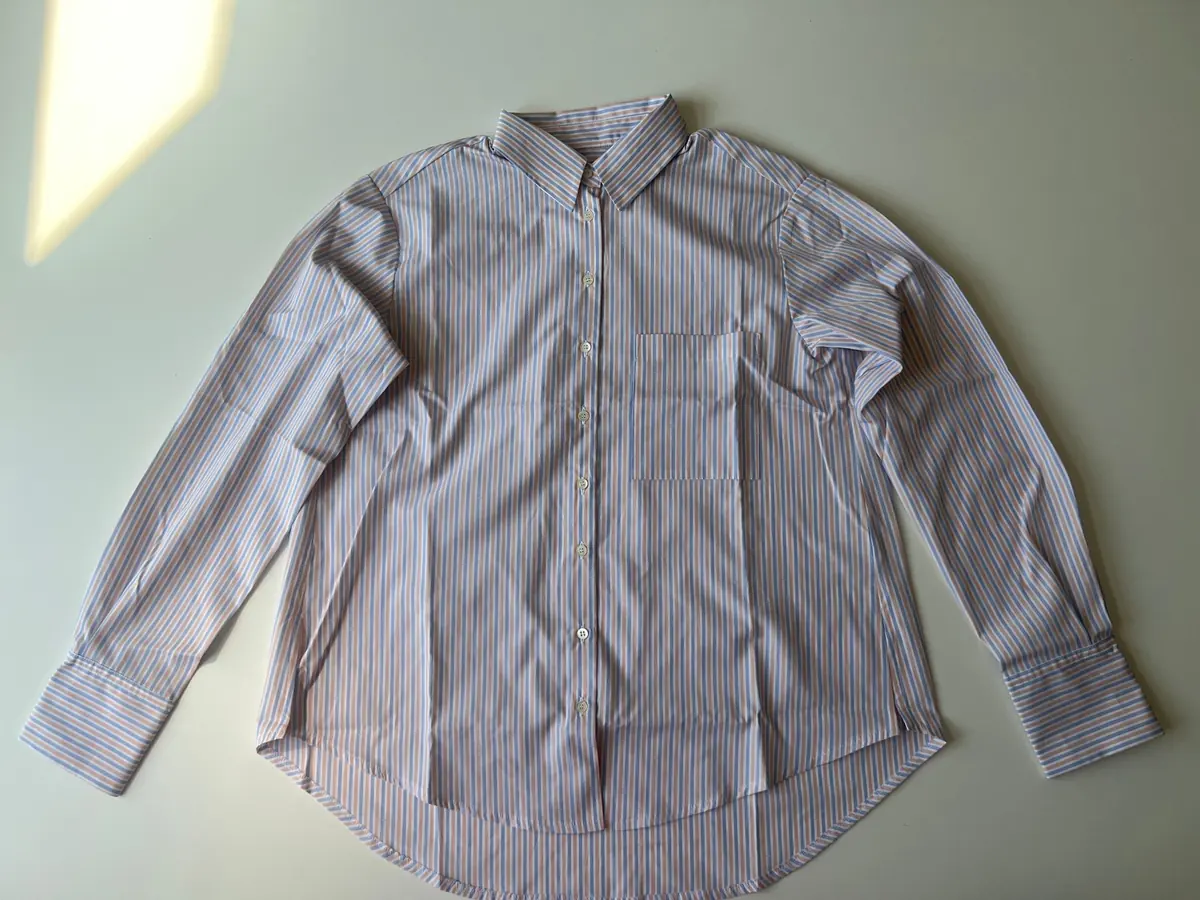
Take a source photo with your phone
Light, angle and background tips that give the best AI results.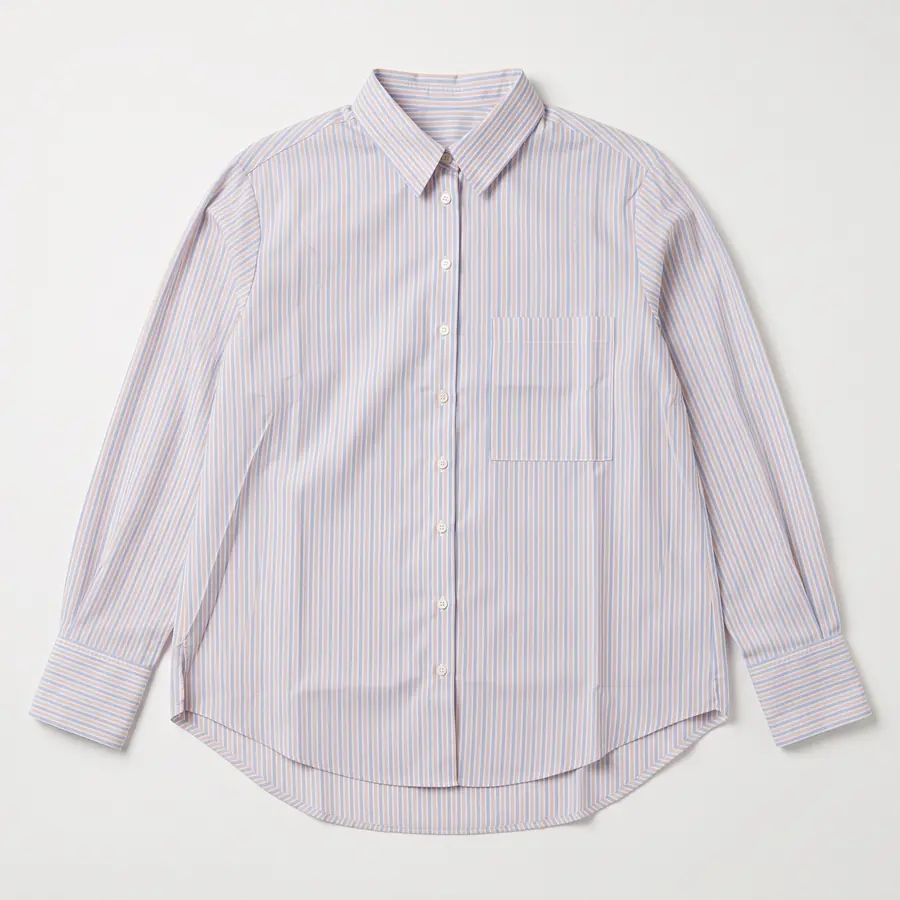
Packshots and flat lays with AI
Clean packshots and styled flat lays from a quick phone photo, and when to use each.Make your first AI product photos today.
Free plan with 15 credits. No credit card.
Install on Shopify